
Overview
A configurable product is a single product with a list of options. Your customers can decide which variation of your product they would like to purchase. For example, your customer can choose a date and time for a course webinar, or a new or used version of a textbook. Each variation of a configurable product represents a separate, simple product with a distinct SKU. This makes it possible to track inventory for each variation.
Creating a Configurable Product
- On the Kano Store Admin panel, click Catalog > Products to access the Products page.
- On the products page, click on the drop down arrow beside Add Product and select Configurable Product.
- Enter the Product Name in the corresponding field.
- Your Kano Store will automatically generate an SKU based on your product name. You can also manually enter your own SKU.
- Enter an appropriate Price for your product.
- Set the tax class to None or Taxable Goods, depending on the product you are selling.
- Enter the quantity of your stock that is available for sale.
- Set your product as In Stock to show that it is available for sale on the website. When the quantity is empty or zero, the stock status defaults to out of stock.
- If you have your Inventory Settings turned off, then you do not need to configure your course's Quantity and Stock Status settings.
- The default visibility setting, 'Catalog, Search', allows the product to be accessed through viewing the catalog or using the search panel.
- In the drop down menu, select the categories applicable to your product and click Done. If you would like to create a new category for your product, click the New Category button.
Creating Configurations and Selecting Attributes
- Scroll down and expand the Configurations section, and click Create Configurations.
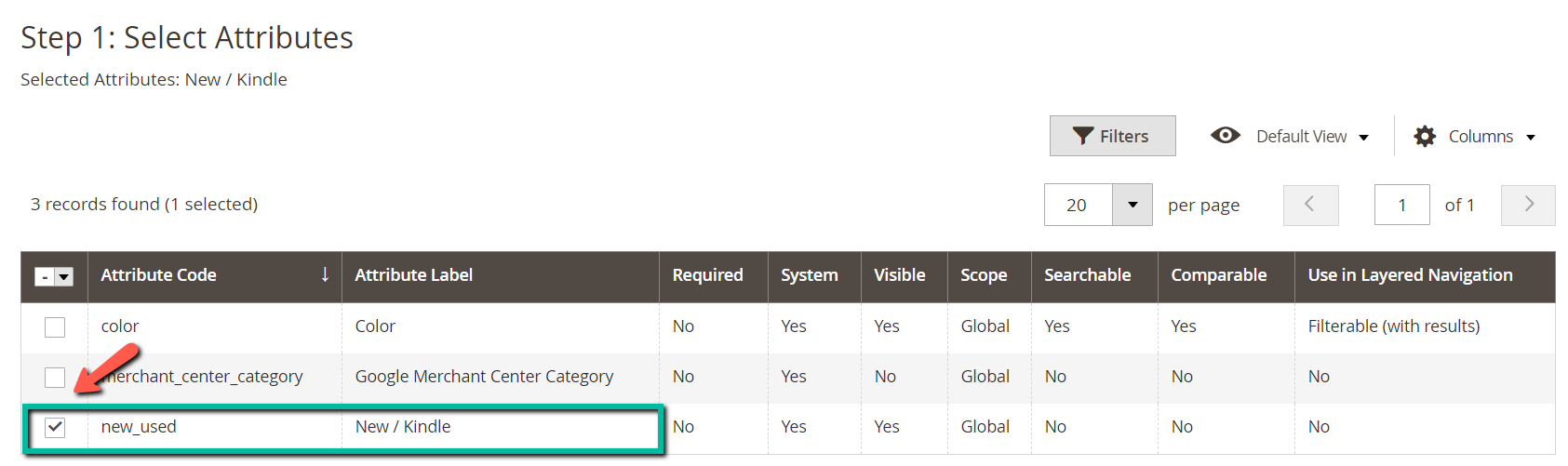
- In the attribute list, mark the checkbox of an attribute that you would like to include as a configuration. This could include webinar dates or different colours.
- Click Next after you have selected your attribute.
In this example, we will use the attribute code 'new_used' to give customers the option of choosing between New and Used textbooks.
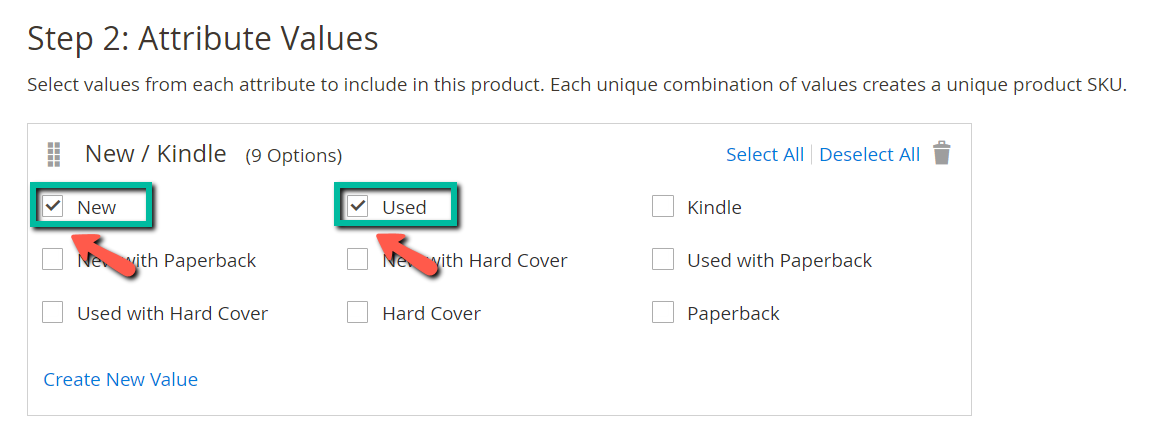
Entering Attribute Values
- For each attribute, use the checkbox to select the values that apply to your product. You can rearrange the attributes by clicking and dragging the
 button beside New/Used.
 - Click Next to proceed to the next step.
Configuring Images, Prices, and Quantities
This step determines the images, pricing, and quantities of each configuration. You can apply the same setting to all SKUs, apply a unique setting to each SKU, or skip the settings for now. You can customize between these settings based on how you would like to present your products.
Apply the Same Setting to All SKUs
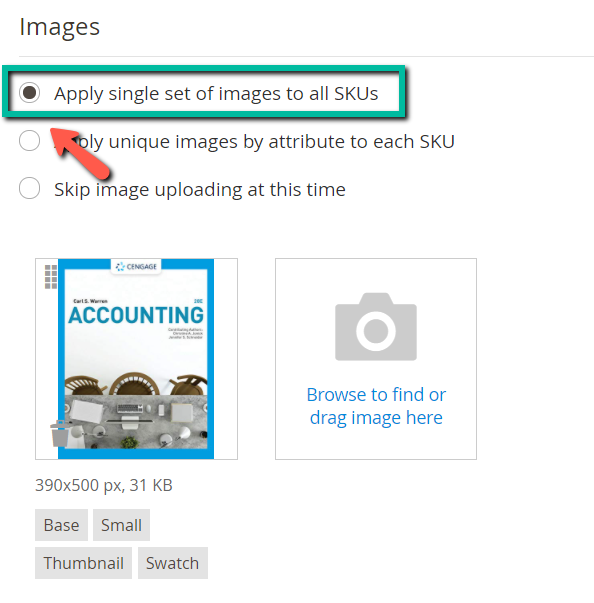
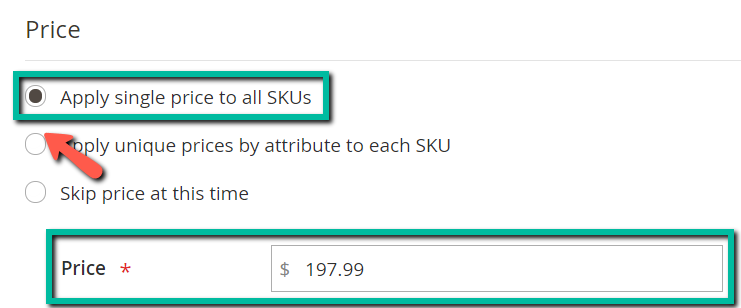
In this case, both the new and the used textbooks will share the same image, same price, and same quantity.
- Applying a single set of images to all SKUs will show the same image for both new and used books.
- Apple single price to all SKUs will show the same price for both new and used books. This disables price in required settings.
- Apply a single quantity to each SKUs will show the same quantity of stock for both new and used books.
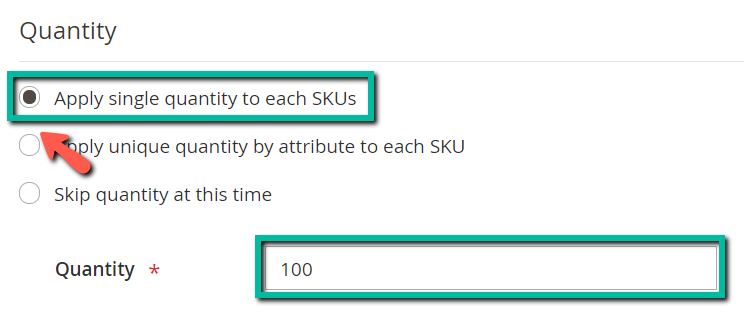
Apply a Unique Setting to Each SKU
In this case, the new and used textbooks will have different images, different prices, and different quantities in stock.
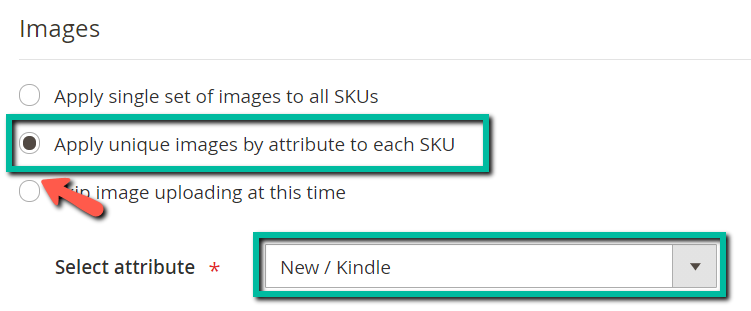
- Apply unique images to each SKU: Select Apply unique images by attribute to each SKU. Then select the New/Used attribute. There are two different values (new books and used books), so there are two fields for images.
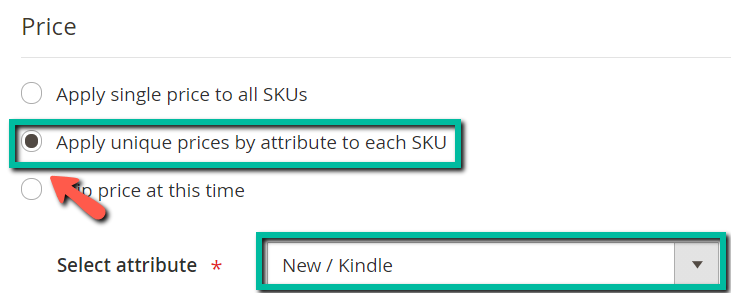
- Apply unique price to each SKU: Select Apply unique prices by attribute to each SKU. Then select the New/Used attribute. There are two different values (new books and used books), so there are two fields for pricing.
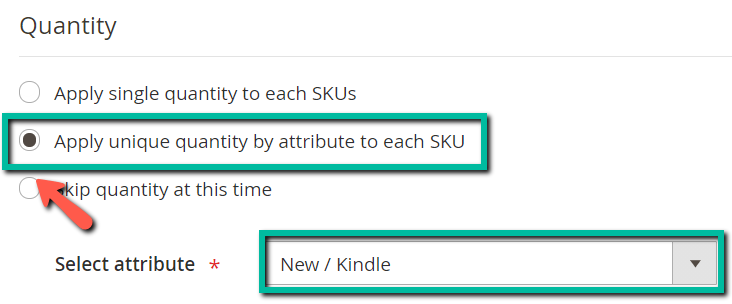
- Apply unique quantity to each SKU: Select Apply unique quantity by attribute to each SKU. Then select the New/Used attribute. There are two different values (new books and used books), and so there are two fields for quantity.
Skipping the Settings For Now
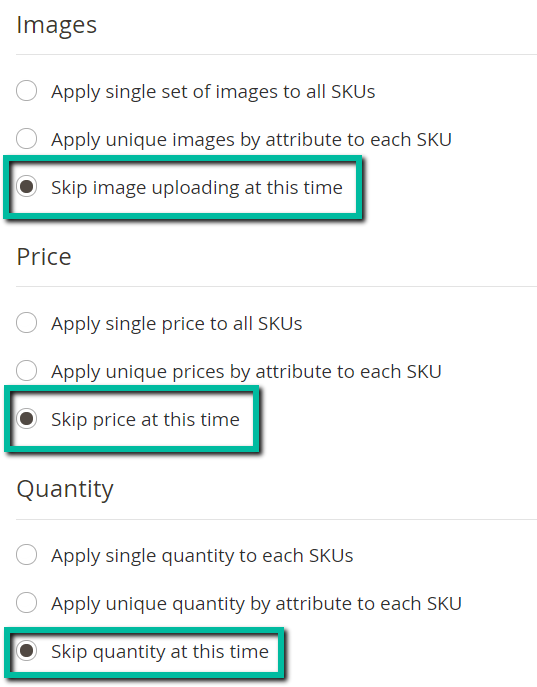
Skipping the settings will display the following results. You can always edit your product to add new information.
- Skipping image uploading at this time will not show images for any individual SKU.
- Skipping price at this time will show both new and used books with the default price entered in the required settings.
- Skipping quantity at this time will show both new and used books as 'Out of Stock'.
Summary & Publishing Your Product
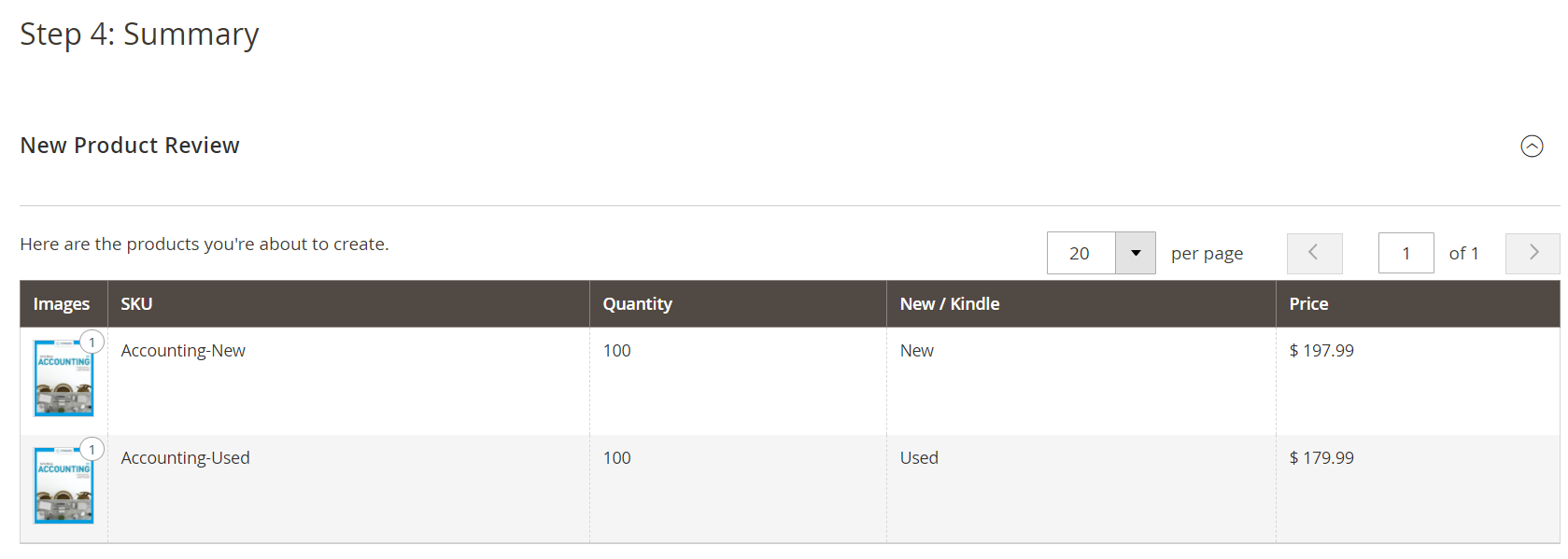
This is the summary of your product configurations. If you are satisfied with your configurations, click 'Generate Products'. Otherwise, click 'Back' to revise your product configurations. Once you have generated and enabled your product, your configurable product will be visible on the storefront.
Click Save.
You can preview your product from the Customer View in the Admin menu in the top-right corner of the page to ensure that your product page is entirely ready.
Comments
0 comments
Article is closed for comments.