
Overview
As a company administrator in your Kano Store, you can import users into one or more of your companies or sub-companies using a .csv file.
Establishing Company Hierarchies
Before you can upload users into your Kano Store, different hierarchy frameworks, like companies and sub-companies, must initially be created. When users that fit into these hierarchies are then uploaded, the system will know where to place each one.
Click here to learn more about creating and managing companies and sub-companies in your Kano Store.
Creating and Formatting Your .csv Files
Once you have finished establishing your company hierarchies, you can then begin to create and format your corresponding .csv files.
When creating your .csv file, it is easiest to manage and format it in spreadsheet software, like Microsoft Excel or Google Sheets.
At the top of each column, you will need to add the following headers:
- First Name
- Last Name
- Company Name
|
NOTE: When creating your .csv file, ensure that your data is formatted correctly. This includes being attentive to lowercase vs. uppercase letters, or trailing spaces. Otherwise, it will be difficult to keep track of data due to potential formatting inconsistencies. |
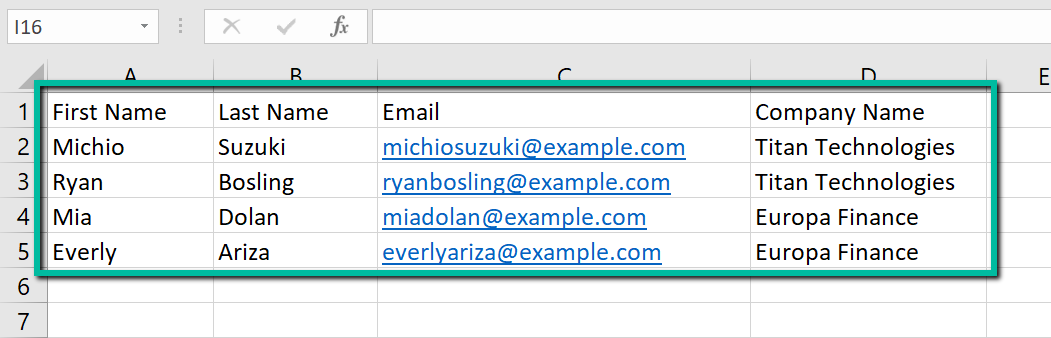
Here is an example of a populated .csv sheet:
Uploading Your .csv File
- In the top-right corner of the Kano Store, click on My Account.
- On the side panel, select List of Customers to open up the List of Customers page.
- Underneath the drop-down menu, click on the Upload Customers link.
- On the Upload Customers page, click the Choose File button and select your desired .csv file. Then, click the Upload button.
Once your file has been uploaded, newly registered customers will receive an email to create their accounts and set their passwords.
|
TIP: Before completing your first upload, it is best to have a trial import run with a file that contains about 25 lines of data. This can help with initial troubleshooting, as it will be easier to trace the source of any potential errors in smaller sets of data. |
Comments
0 comments
Article is closed for comments.