
Overview
A Catalog Price Rule offers discounted prices based on a set of defined conditions. Catalog price rules are triggered before a product is placed into the shopping cart, so they do not use coupon codes. When the conditions for a price rule are met, it automatically displays products with the promotional price.
Creating a Catalog Price Rule
- On the Kano Store admin panel, click Marketing > Catalog Price Rule to access the Catalog Price Rule page.
- Click Add New Rule on the button bar to open up the New Catalog Price Rule page.
-
Fill in the Rule Name and Description fields.
Status box: Set the Status box to Active if you would like the rule to be enabled on your Kano Store website. You can set the status box to Inactive if you would like to temporarily disable the rule. Website(s) Select the Website(s) that you would like this rule to apply to. Customer Groups Select the Customer Groups/Companies to which this rule will apply to.
To select multiple groups, hold down the Crtl key (Windows) or Command key (Mac), and select your desired groups.
- Choose a Start Date and an End Date for the price rule to be active by clicking on the calendar icons.
- Enter a number in the Priority field to establish the priority of this rule in relation to others.
- The rule with the highest priority setting (with 1 being the highest priority) will become active for the product and override conflicting price rules.
Define the Price Rule Conditions
Most of the available conditions are based on existing attribute values. To apply the rule to all products, leave the conditions blank. Course Categories can be a useful determinant for price rules.
- Scroll down and expand the Conditions section.
-
The first condition appears by default and states:
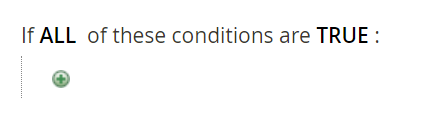
You can create different conditions for your rule by clicking the bold text. All bold text in the Conditions section is clickable and alterable.
Click ALL and select ALL or ANY.
Click TRUE and select TRUE or FALSE.
- Click the
 button at the beginning of the next line, and select an option for the condition (like an attribute set, category, or conditions combination) from the drop down menu.
 - Click the "..." to display the designated field, and select the option that suits your price rule.
In the above example, the discount would be applied to the categories:
- IT and Software (includes 15 products)
- Information Security (includes 3 products)
Define Pricing Actions
- Scroll down and expand the Actions section.
-
In the Apply field, select one option from the drop-down menu:
Apply as percentage of the original: You can add a percentage discount from the regular price (For example, entering '10' generates a 10% discount). Apply as a fixed amount: You can add a fixed discount by entering a value that is to be subtracted from the regular price (For example, entering '10' takes $10 off the regular price). Adjust final price to this percentage: You can adjust the final price to be a percentage of the regular price (For example, entering '45' lists the final price as 45% of the regular price). Adjust final price to discount value: You can set the final price to a fixed, discounted amount. (For example, entering '20' lists the final price as $20.00) - Enter the desired discount amount.
- If you would like to stop processing other rules after this rule is applied, set Discard Subsequent Rules to Yes. This prevents the system from applying multiple discounts.
- Once you are complete, click Save on the button bar.
| TIP: Test your rule to ensure that it is working correctly. |
Comments
0 comments
Article is closed for comments.